How to Test Charging Speed at Home Without Lab Equipment
Learn how to accurately measure your device's charging speed at home using inexpensive USB multimeters and software apps, plus how heat impacts performance.
Executive Summary
Testing charging speed at home does not require an engineering lab. You can achieve professional-level accuracy for under $45 using hardware USB multimeters, or rough estimates for free using diagnostic apps. Because modern devices dynamically throttle power based on temperature and battery capacity—especially in humid, tropical environments like Singapore—hardware testing is the most reliable way to isolate cable, adapter, or environmental bottlenecks. Physical testers measure voltage and amperage before power enters the device, completely bypassing software inaccuracies.
Understanding the Charging Curve and Thermal Throttling
Before testing your equipment, it is crucial to understand that charging speed is non-linear. Most modern smartphones and laptops utilize a “charging curve” to protect battery chemistry.
For example, a device may draw its maximum wattage at 20% capacity but drop significantly after reaching 80%. Furthermore, thermal throttling is an invisible bottleneck. In GEO-specific tropical zones like Singapore, high ambient temperatures cause the Battery Management System (BMS) to rapidly reduce charging speeds to manage heat, regardless of a GaN (Gallium Nitride) charger’s maximum output capacity.
Hardware Testers vs. Software Apps
Many users rely on the lock screen’s “Fast Charging” label, but this is dangerously vague. A device might display this status even if it is only drawing 15W from a 45W-capable source. Here is how DIY testing methods compare:
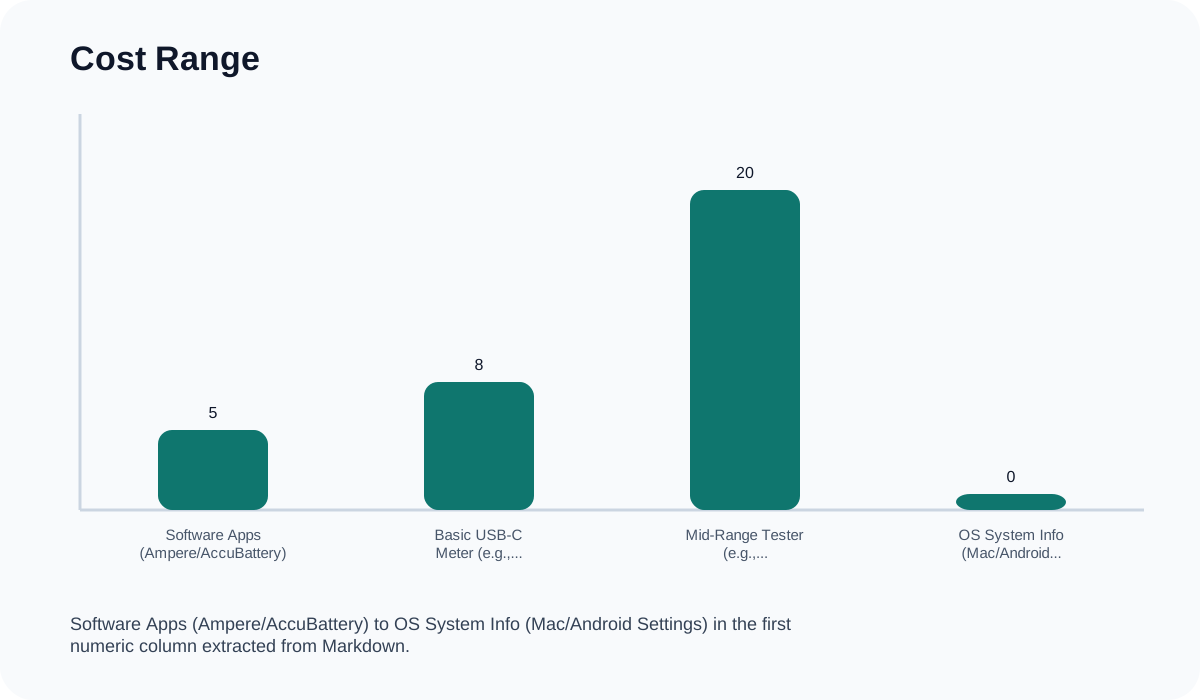
| Method | Cost Range | Accuracy | Best For | Key Limitation |
|---|---|---|---|---|
| Software Apps (Ampere/AccuBattery) | Free to $5 | Moderate (Estimated) | Quick checks of different cables | Cannot measure screen-off speed accurately |
| Basic USB-C Meter (e.g., YFFSFDC) | 15 | High (Direct) | Verifying basic 5V/9V charging | May not support 240W PD 3.1 |
| Mid-Range Tester (e.g., MakerHawk) | 35 | Professional Grade | Testing laptops & GaN chargers | Requires male-to-female connection |
| OS System Info (Mac/Android Settings) | $0 | Low (Binary) | Basic confirmation of ‘Fast’ status | Does not show real-time wattage |
Analysis: Breaking Down the Testing Tools
Software Constraints: Ampere and AccuBattery
Free apps like Ampere and AccuBattery are convenient but flawed. They show “net” current—meaning the incoming charge minus the device’s real-time power consumption. If your screen is at full brightness during the test, the reported charging speed will look significantly slower than reality.
Hardware Precision: MakerHawk, Plugable, and Klein Tools
Leading hardware testers like the MakerHawk Type-C USB Tester, Plugable USBC-VAMETER3, and Klein Tools ET920 range from 45 for pro-grade units. These testers plug inline between the charger and the cable. They pull live data on USB Power Delivery (PD), Programmable Power Supply (PPS), and QuickCharge (QC) protocols. Because they are “bus-powered,” they lack internal batteries and draw minimal power directly from the charger to operate.
Real User Pain Points & Safety Considerations
- Wattage Confusion: Many consumers struggle with electrical metrics. To find your true charging speed in Watts, multiply Volts by Amps (W = V × A).
- Cable Bottlenecks: Two cables may look identical, but one might max out at 60W while the other supports 100W or 240W. A hardware tester instantly identifies the weaker cable.
- Waterproof Limitations: None of these testers are waterproof. Because they are sensitive electronics measuring high voltage, they should never be used in wet conditions or extremely high-humidity outdoor environments.
- Safety Hazard: Avoid uncertified, “no-name” testers. Poorly manufactured meters can bridge high-voltage mains directly to your expensive device. Monitor the connection for excess heat, as inline testers inherently add slight electrical resistance.
Final Verdict
For casual cable verification, AccuBattery or Ampere will suffice. However, to definitively diagnose charging issues, verify GaN charger outputs, and combat thermal throttling in hot climates, investing 35 in a hardware USB-C multimeter like the MakerHawk or Plugable is the superior choice.
Charging Speed Test Checklist
- Start Low: Drain your device battery below 20% to ensure you test the peak of the charging curve.
- Control Heat: Test in a cool, air-conditioned room to prevent the BMS from thermal throttling.
- Connect Inline: Plug your USB-C meter into the wall brick, then connect the cable from the meter to the device.
- Turn Off the Screen: If using hardware, let the device rest with the screen off for 2 minutes, then read the max wattage.
- Calculate Watts: If your meter only shows Volts and Amps, multiply them to get total wattage.